
Convert Multiple Configurations

Processes all part and assembly configurations instead of only the active or selected configuration.
Note
This setting is available in both the PDM task and SOLIDWORKS add-in. The task begins with its selected or launched configuration; the add-in begins with the configuration active in SOLIDWORKS.
Important
Add ConfigurationName to the filename pattern before enabling this option. Without a configuration-specific filename, exports from different configurations can overwrite each other.
Configuration Filter
The Configuration Filter button opens the filter dialog for this option. Use it when you do not want every configuration to be processed.
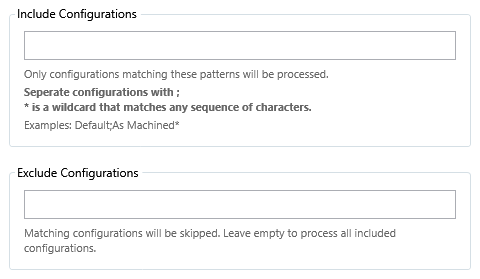
The filter lets you include or exclude configurations by name. Use wildcard patterns when several configurations share a naming convention.
Enter patterns in Include Configurations when only matching configurations should be exported. Leave it empty when all configurations are allowed.
Enter patterns in Exclude Configurations when matching configurations should be skipped. This is commonly used to skip flat pattern configurations when exporting model formats such as STEP.
| Goal | Example pattern | Result |
|---|---|---|
| Export every configuration | * |
Processes all configurations. |
| Export only production configurations | PROD* |
Processes configurations whose names start with PROD. |
| Export only a named configuration | Default |
Processes only Default. |
| Export sizes that follow a naming pattern | SIZE-* |
Processes configurations such as SIZE-S, SIZE-M, and SIZE-L. |
| Exclude flat pattern configurations | *Flat* or *Flat-Pattern* in the exclude list |
Skips flat pattern configurations during normal configuration export. |
Tip
If you want every model configuration converted to STEP, enable Convert multiple configurations, include ConfigurationName in the filename pattern, and exclude flat pattern configurations from the configuration filter. This avoids creating unwanted STEP files from sheet metal flat pattern configurations.