
Task Details tab
The Task Details Log tab in PDMPublisher provides a quick summary of files that were successfully converted and saved back into SOLIDWORKS PDM.
This view is intended to make it easier to confirm which output files were created by the task without manually opening the task log file.
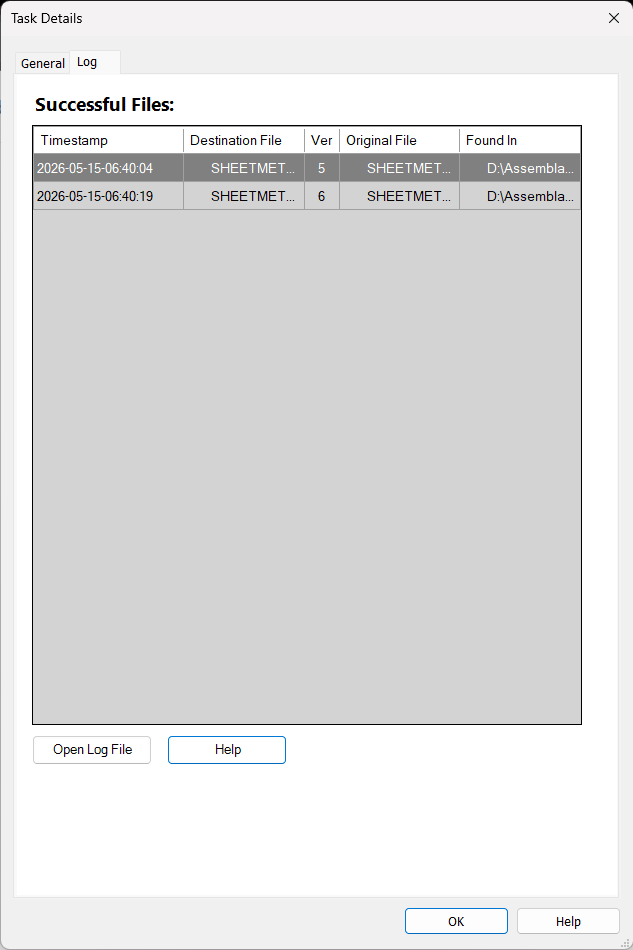
What the Details tab shows
The Details tab displays a table of successful files found in the PDMPublisher task log.
The table may include:
| Column | Description |
|---|---|
| Timestamp | The time the file was saved or checked in. |
| Destination File | The output file created by PDMPublisher. |
| Ver | The PDM version of the saved output file. |
| Original File | The source file used to create the output. |
| Found In | The PDM folder where the destination file was saved. |
Important requirements
The Details Log tab depends on the task log file.
For the Details Log tab to work correctly:
- Logging must be enabled in the PDMPublisher task.
- The user opening the details must have permission to read the log file.
- The user must have access to the workflow state and folder where the log file is stored.
If the log file cannot be accessed, the Details Log tab may not be able to display the successful files.
Important
Files saved outside the PDM vault are not tracked in the Details Log tab. The Details Log tab only reports files that were saved or checked in to SOLIDWORKS PDM and recorded in the task log.
Log file permissions
PDMPublisher reads the task log file to build the Details tab.
If the user does not have permission to access the log file, the Details tab may show an empty result or display a warning.
Common causes include:
- The user does not have read permission for the log file.
- The user does not have read permission for the log folder.
- The folder is restricted by workflow permissions.
- The file is in a workflow state that the user cannot access.
- The log file was moved or deleted.
- The task log reference is no longer valid.
Open Log File
The Open Log File button opens the original task log file.
Use this option when:
- The Details tab does not show the expected files.
- You want to review the full task output.
- You need to troubleshoot a failed or partially completed task.
- You want to confirm whether the output files were saved inside or outside PDM.
Help
The Help button opens this documentation page.
Troubleshooting
The Details tab is empty
Check the following:
- Confirm that logging is enabled in the PDMPublisher task.
- Confirm that the task created files inside the PDM vault.
- Open the log file and check whether successful check-in messages exist.
- Confirm that the user has read access to the log file and log folder.
- Confirm that the output files were not saved outside PDM.
The log file cannot be opened
This usually means the file cannot be found or the user does not have enough permissions to access it.
Ask your PDM administrator to verify:
- Folder permissions
- Workflow state permissions
- File read permissions
- Log file location
- Whether the log file still exists in the vault
Notes
The Details tab is a presentation of the actual PDMPublisher task log. It does not create separate tracking records. If the required information is not available in the log file, it cannot be displayed in the Details tab.