
Install PDMPublisher for SOLIDWORKS
Use the PDMPublisher MSI installer to install the SOLIDWORKS desktop add-in. SOLIDWORKS must be closed while you install or update the add-in.
Download PDMPublisher for SOLIDWORKS
Before You Begin
- Save your work and close every running SOLIDWORKS window.
- Make sure your Windows account can install applications. Your organization may require administrator approval.
- Download the PDMPublisher MSI installer to the local computer. Do not run it directly from an email attachment, ZIP archive, or network preview.
Important
Keep SOLIDWORKS closed until the installation wizard finishes. An open SOLIDWORKS process can prevent the installer from replacing or registering add-in files correctly.
Unblock the Downloaded MSI
Windows may block files downloaded from the internet. Unblock the MSI before running it:
- Open File Explorer and locate the downloaded
.msifile. - Right-click the MSI and select Properties.
- On the General tab, select Unblock under Security.
- Select Apply, and then select OK.
Note
If the Unblock option is not shown, Windows has not marked the file as blocked and you can continue with the installation.
Run the Installation Wizard
- Confirm that SOLIDWORKS is closed.
- Double-click the unblocked MSI file.
- Approve the Windows security or administrator prompt if one appears.
- Follow the installation wizard through each page.
- Select Install when prompted.
- Wait for the installer to finish, and then select Finish.
Enable PDMPublisher in SOLIDWORKS
- Start SOLIDWORKS.
- Select Tools > Add-Ins.
- Expand Partner Solution Add-Ins if the group is collapsed.
- Find PDMPublisher (SOLIDWORKS).
- Select the checkbox in Active Add-ins to load it in the current SOLIDWORKS session.
- Select the checkbox in Start Up to load PDMPublisher automatically whenever SOLIDWORKS starts.
- Select OK.
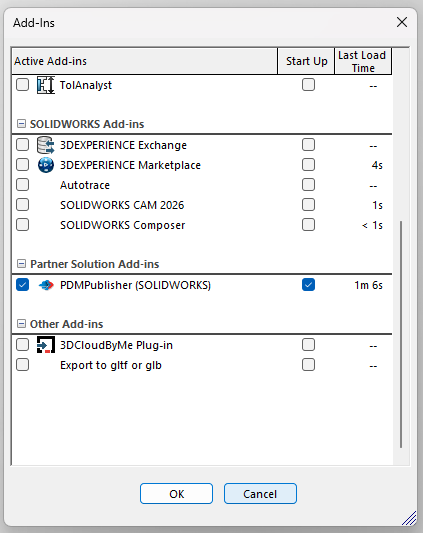
After the add-in loads, open the PDMPublisher CommandManager tab. Use Settings to configure profiles and shared resources; the task pane now displays the product documentation.
Update PDMPublisher
To install a newer version, close SOLIDWORKS, download the current MSI, unblock it, and run the installation wizard again. Reopen SOLIDWORKS only after the update finishes.
Next Steps
- Open the PDMPublisher for SOLIDWORKS overview.
- Create and manage profiles.
- Manage your license.
- Watch the video demos.
If PDMPublisher does not appear in Tools > Add-Ins, close SOLIDWORKS and run the installer again. For additional help, contact support@bluebytesystemsinc.zohodesk.com and include your SOLIDWORKS version and a screenshot of the Add-Ins dialog.