
Share Profiles Using a PIN
PDMPublisher for SOLIDWORKS 2026.08.10 and later can share a profile by using a six-digit PIN. Another PDMPublisher for SOLIDWORKS user can enter that PIN to download, save, and apply the shared settings.
This feature belongs to PDMPublisher for SOLIDWORKS. The PDM Professional task stores settings in its task definition and does not use profile PINs.
Important
Both users need an internet connection and a version of PDMPublisher for SOLIDWORKS that supports profile PIN sharing. A PIN remains available for 30 days.
What a Shared Profile Can Include
Before uploading or applying a profile, PDMPublisher lets you select these sections:
- Options
- Annotations
- Conditions
All available sections are selected by default. Select at least one section to continue.
The recipient can apply only the included sections they need. Settings in sections that are not selected remain unchanged in the recipient's current profile.
Share a Profile
Select the profile you want to share.
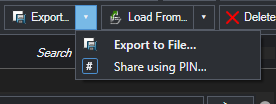
Open Export, then select Share using PIN....
Select the Options, Annotations, and Conditions sections to include.
Select Share and wait for the upload to finish.
In the Profile Shared dialog, select Copy PIN and send the PIN to the recipient.
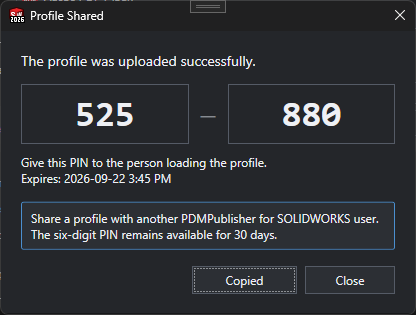
The dialog shows the PIN expiration in the sender's local time.
Load a Shared Profile
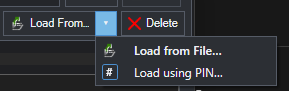
Open Load From..., then select Load using PIN....
Enter the six-digit PIN supplied by the sender.
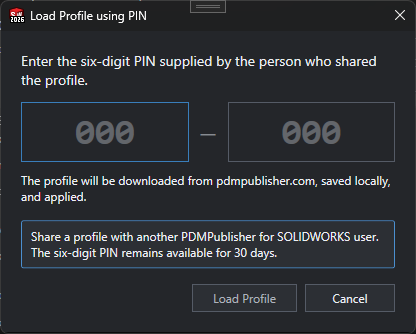
Select Load Profile.
Select which available sections to apply, then select Load Selected.
PDMPublisher downloads the profile, saves it locally, applies the selected sections, and makes it the active profile. Other current sections remain unchanged.
If a local profile already has the shared profile's name, PDMPublisher asks whether to replace it, import it under another name, or cancel the import.
Security and Expiration
Warning
Anyone who has an active PIN can download the shared profile. Use PIN sharing for convenient, short-lived configuration exchange, not for confidential information.
Review the selected sections before sharing. Profiles can contain export paths, filenames, annotations, conditions, PDM property names, and SQL annotation settings. Do not share passwords, private connection strings, or other secrets.
An expired or invalid PIN cannot be loaded. Ask the sender to share the profile again to receive a new PIN.
For file-based transfer instead of PIN sharing, see Move Profiles Between Computers.