
Ask User to Specify Files on Task Launch

When this option is enabled, PDMPublisher shows a file selection dialog on task launch. The user can choose which files to export, which configurations to process, which formats to create, and where the output should go on the machine that launched the task.
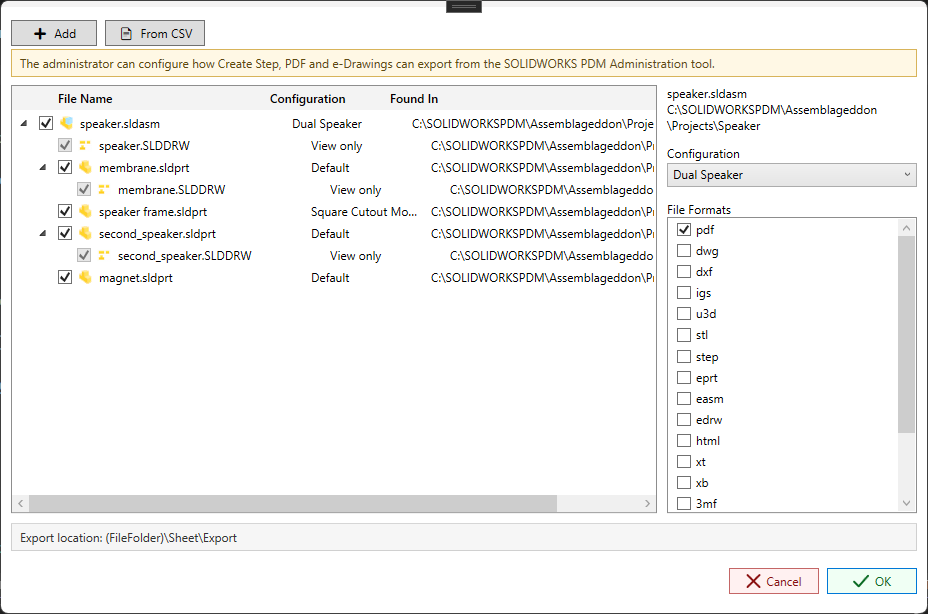
Use this option when the person launching the task should be able to choose the files, configurations, formats, and export location instead of using only the fixed task configuration from the SOLIDWORKS PDM Administration tool.
Add Files
Select Add to manually add files on task launch. This is useful when the user knows exactly which assembly, part, drawing, or document needs to be exported.
After a file is added, it appears in the file list with a checkbox. Checked files are included when publishing starts. Unchecked files stay visible in the dialog but are skipped when the user selects OK.
Import From CSV
Select From CSV to add multiple files from a CSV list. This is useful for repeatable batches, release packages, or lists generated from another system.
The files in the CSV must resolve to files the user can access in the vault or local cache. After import, the user can still review the list, clear checkboxes for files that should be skipped, and adjust configuration or format choices before publishing.
File List
The left side of the dialog shows the files that will be considered for export.
| Column | What It Means |
|---|---|
| File Name | The file selected for export. Assemblies can expand to show referenced parts and drawings. |
| Configuration | The configuration that will be processed for that row. Drawings commonly show view-only because the drawing sheet is being exported rather than a model configuration. |
| Found In | The vault or local cache folder where PDMPublisher found the file. |
Assemblies can be expanded so users can include or exclude referenced components. When drawing lookup is enabled, related drawings can appear under the model file so the user can decide whether the drawing should be exported too.
Selected File Details
The right side of the dialog changes based on the selected row.
The file name and path at the top confirm which file is currently selected. This helps users verify that they are editing the correct file, especially when multiple files have similar names.
The Configuration list controls which configuration is used for the selected file. Users can choose a different configuration per file when the task needs to publish multiple variants.
The File Formats checklist controls the output formats for the selected file. For example, a drawing may be exported to PDF, DWG, or DXF, while a part or assembly may be exported to STEP, STL, eDrawings, or another supported model format. See File Formats for format-specific behavior.
Export Location
The export location at the bottom shows the output path pattern selected on task launch. It can include placeholders such as (FileFolder) so exported files are placed relative to the source file.
For example:
(FileFolder)\Sheet\Export
This places exported files in a Sheet\Export folder under the selected file's folder.
The export path can use the same placeholder rules as the main task option. See Export Location for placeholder examples, vault paths, network paths, and extension-specific overrides.
Administration Message
The yellow message explains that the administrator can still control how Create STEP, PDF, and eDrawings exports are configured from the SOLIDWORKS PDM Administration tool.
This dialog does not replace the administrator settings. It gives the user a controlled way to choose files, configurations, formats, and output location on the machine that launched the task.
Start Or Cancel
Select OK to start publishing with the selected files, configurations, formats, and export location.
Select Cancel to close the dialog without running the task.
For fully automated workflows, leave this option disabled and configure the task settings directly in the administration tool.