
File Formats

Selects the output formats created during publishing. Both products can generate multiple formats in one job.
Note
This setting is shared by the PDM task and SOLIDWORKS add-in. The task can process selected PDM files, including supported Office documents. The add-in exports the SOLIDWORKS document currently open and its resolved references.
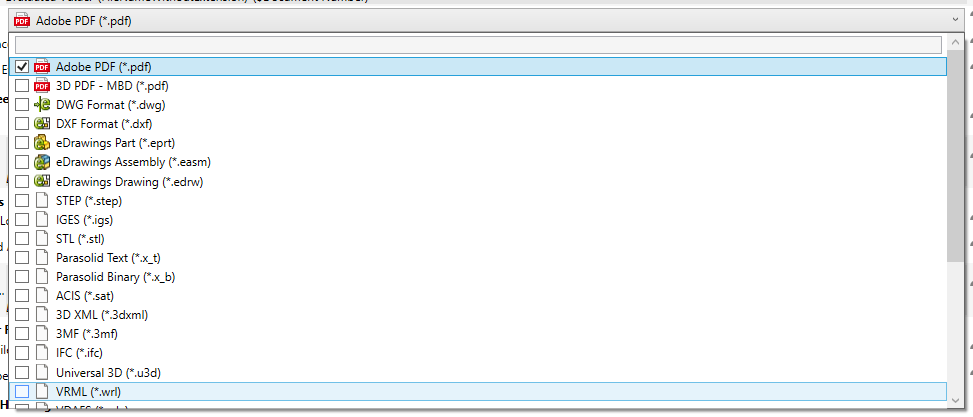
Format Names and Icons
The selector shows a descriptive format name, its output extension, and a file-type icon. The icon is supplied by Windows and may vary with the applications and file associations installed on the computer. It is only a visual identifier and does not change the export.
Supported Outputs
PDMPublisher can export SOLIDWORKS files to the formats shown in the File Formats list. The PDM task also supports exporting Microsoft Word and Excel documents to PDF when those Office documents are processed by the task.
The complete selector is organized as follows:
| Group | Formats |
|---|---|
| PDF and MBD | Adobe PDF (pdf), 3D PDF - MBD (_3dpdf) |
| Drawings | DWG (dwg), DXF (dxf) |
| eDrawings | eDrawings Part (eprt), eDrawings Assembly (easm), eDrawings Drawing (edrw) |
| CAD and interchange | STEP (step), IGES (igs), STL (stl), Parasolid Text (x_t), Parasolid Binary (x_b), ACIS (sat), 3D XML (3dxml), 3MF (3mf), IFC (ifc), Universal 3D (u3d), VRML (wrl), VDAFS (vda), CATIA Graphics (cgr), HCG (hcg), HOOPS HSF (hsf) |
| Web and images | HTML (html), Microsoft XAML (xaml), JPEG (jpg), TIF (tif), Bitmap (bmp), Adobe Illustrator (ai), Adobe Photoshop (psd) |
Added in Version 2026.08.05
Version 2026.08.05 adds these output choices:
- ACIS (
sat) - 3D XML (
3dxml) - VRML (
wrl) - VDAFS (
vda) - CATIA Graphics (
cgr) - HCG (
hcg) - HOOPS HSF (
hsf) - Microsoft XAML (
xaml) - JPEG (
jpg) - TIF (
tif) - Adobe Illustrator (
ai) - Adobe Photoshop (
psd)
Note
PDMPublisher removes formats that are not valid for the source document type. Some formats also depend on the SOLIDWORKS version and export capabilities installed on the computer. The task uses its configured SOLIDWORKS version; the add-in uses the currently running version.
eDrawings Output
PDMPublisher PDM Task 2026.08.12 fixes the SOLIDWORKS preferences applied when creating .eprt, .easm, and .edrw files. See eDrawings Export Settings for the affected preferences and task-host requirements.
This correction applies only to the PDM task. It does not change PDMPublisher for SOLIDWORKS.
If SOLIDWORKS supports an export format that is not currently listed here, contact Blue Byte Systems and request support for that format:
PDF Output
When PDF is selected for a SOLIDWORKS part or assembly, PDMPublisher looks for a drawing with the same name in the same folder.
For example, if the task runs on:
C:\PDMVault\Projects\1001\Bracket.SLDPRT
PDMPublisher checks for:
C:\PDMVault\Projects\1001\Bracket.SLDDRW
If the matching drawing is found, PDMPublisher opens the drawing and prints/exports the drawing to PDF. This lets a task run from a model while still producing the drawing PDF users expect.
Note
In the PDM task, Use PDM Search to Locate Drawings can locate a drawing that is not in the same folder. This task-only search option is not available in the SOLIDWORKS add-in.
DXF Output
When DXF is selected for a drawing, PDMPublisher exports the drawing as DXF.
Warning
Drawing DXF output is not the same as a sheet metal flat pattern DXF. If you want a 1:1 flat pattern DXF from sheet metal parts, enable Export Sheet Metal Parts to 1:1 Flat Pattern DXF in the Export section instead.
Flat Pattern DXF
Flat pattern DXF export is controlled by its own option at the bottom of the Export section: Export Sheet Metal Parts to 1:1 Flat Pattern DXF.
You do not need to select DXF in File Formats for that flat pattern feature to run.